Google Drive Integration
Connect Concord and Google Drive to sync data between the two platforms.
This Article Answers
How do I integrate Google Drive with Concord?
TL;DR
Connect Concord and Google Drive to sync data by navigating to Automations > Integrations from the homepage and configuring the integration settings.
Key Facts
- •Access integrations by clicking Automations > Integrations from the Concord homepage
- •Google Drive integration enables data syncing between Concord and Google Drive
- •The integration connects two platforms for automated data transfer
How to enable the Google Drive integration
-
Click Automations>I****ntegrations from the homepage
-
In the Storage section, toggle the Google Drive integration ON.
-
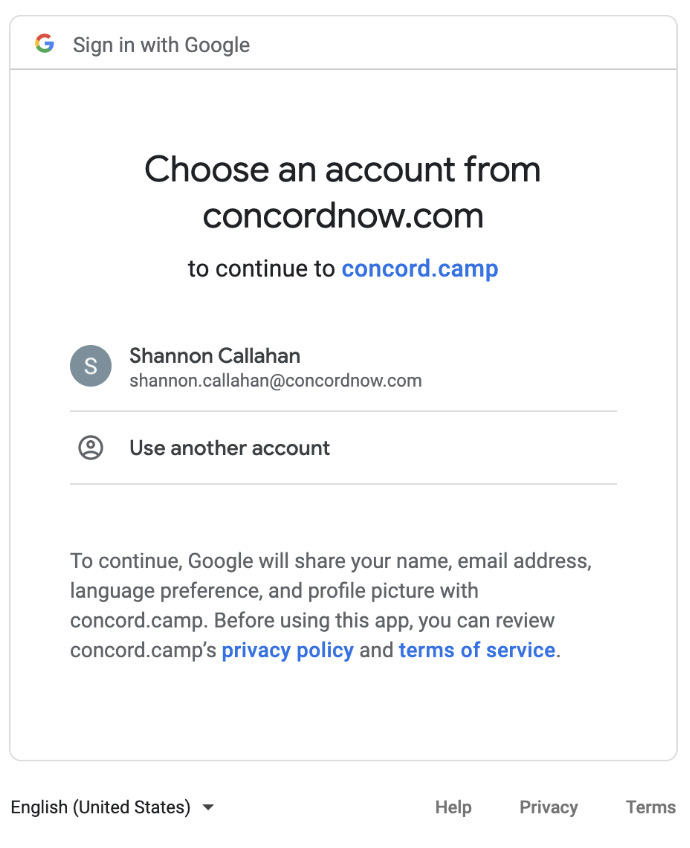
Follow the redirect to log in to your Google account and give Concord access.
***The Google Drive integration enables you to do the following: ***
1. Automatically export signed documents
The Google Drive integration automatically exports fully signed Concord documents to your Google Drive. It will create a folder called "Concord" and a subfolder with your company's name in your Google Drive. Documents from your Concord account will be exported to the subfolder.
*Note: documents signed in Concord before the integration was enabled will not be retroactively exported to your Google Drive account. *
2. Manually exporting documents
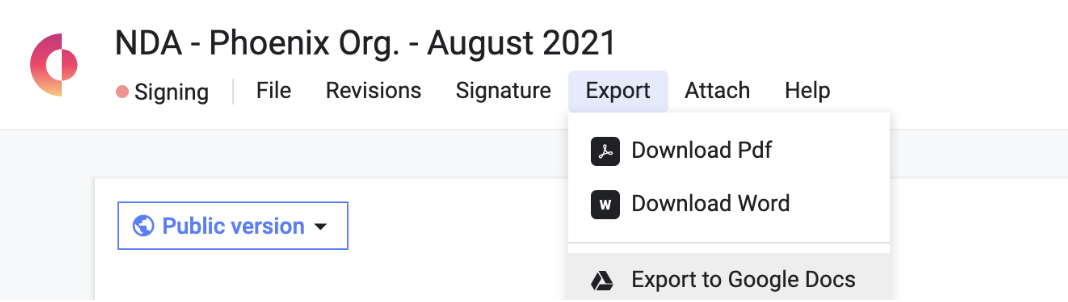
The Google Drive integration enables you to export a document in any stage to your Google Drive account, as a Google Doc. Open the document you would like to export, select the Export menu and choose Export to Google Docs.