Dropbox Integration
Connect Concord and Dropbox through the native integration and export your documents post signature. With the Dropbox integration enabled, signed documents will automatically be exported for additional storage within Dropbox.
This Article Answers
How do I integrate Dropbox with Concord to automatically export signed documents?
TL;DR
Connect Concord and Dropbox through the native integration to automatically export signed documents for additional storage in Dropbox. Access the integration through Automations > Integrations from the homepage.
Key Facts
- •Navigate to Automations > Integrations from the Concord homepage to access integration settings
- •Concord offers a native Dropbox integration for seamless connection
- •Signed documents are automatically exported to Dropbox once the integration is enabled
- •The integration provides additional storage for your signed documents within Dropbox
-
Click Automations>I****ntegrations from the homepage
-
Toggle **on **the Dropbox integration
-
Click** Connect **beside the Dropbox
-
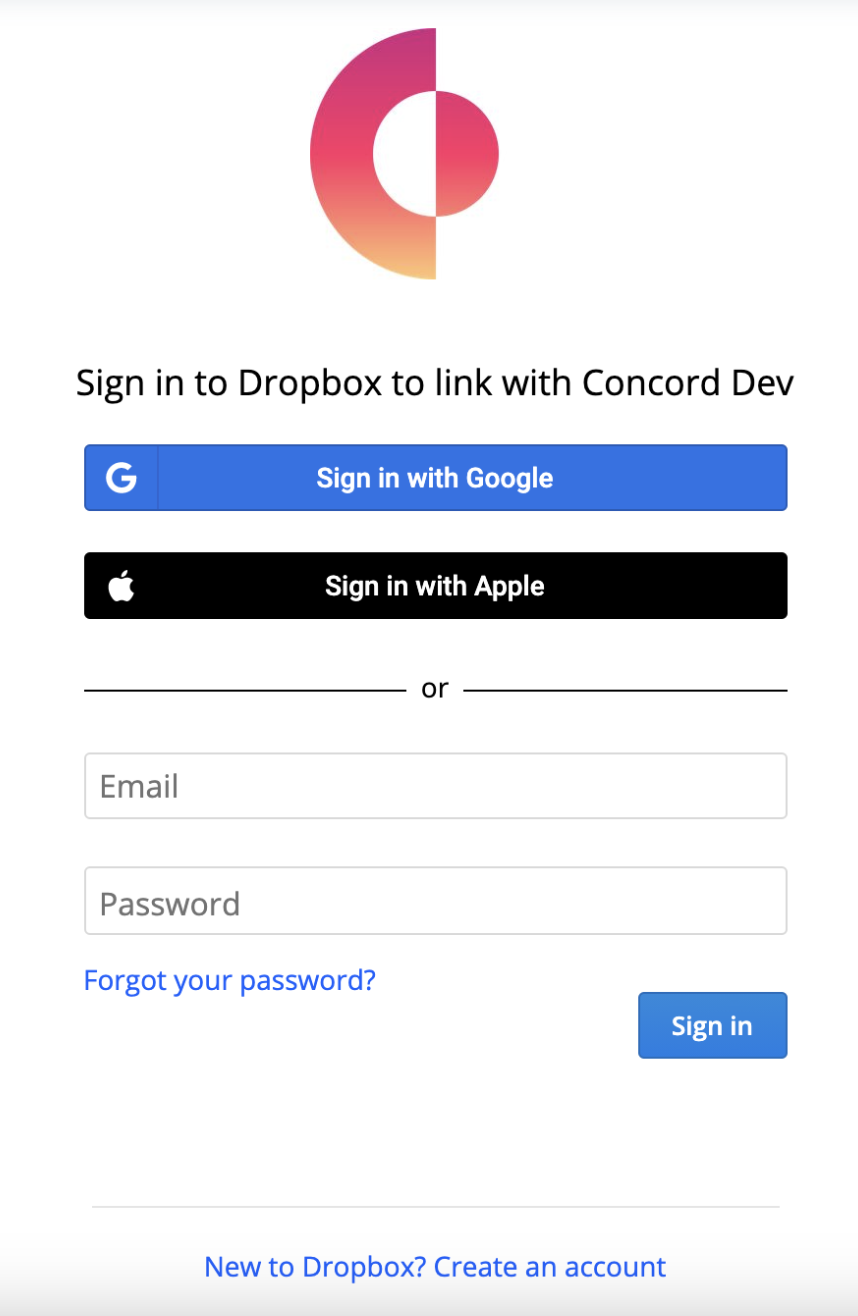
You will be redirected and requested to log in - follow the prompts to grant Concord access to your cloud storage account.
-
Once connected, your contracts will be exported to a Concord folder in your Dropbox account automatically upon the signature of all parties. Before setting up the integration, documents signed in Concord will not be retroactively exported to your cloud storage account.
This functionality is available with some of our paid accounts.