Concord & Zapier
With the new Concord & Zapier integration, you can connect Concord to other apps outside of our native integrations. Increase productivity with connections to Google Forms, Slack, and more!
This Article Answers
How do I integrate Concord with Zapier?
TL;DR
Connect Concord to apps like Google Forms and Slack through Zapier to increase productivity. Start by logging into your Zapier account and accessing the Concord integration.
Key Facts
- •Log in to your Zapier account to begin the integration
- •Access Concord integrations through zapier.com/apps/concord-1/integrations
- •Connect Concord to apps outside native integrations including Google Forms and Slack
- •Use Zapier to automate workflows and increase productivity across multiple platforms
Creating a Zap
-
Start by logging in to your Zapier account. Access Zapier here!
-
Select Create a Zap
-
Search for Concord CLM
-
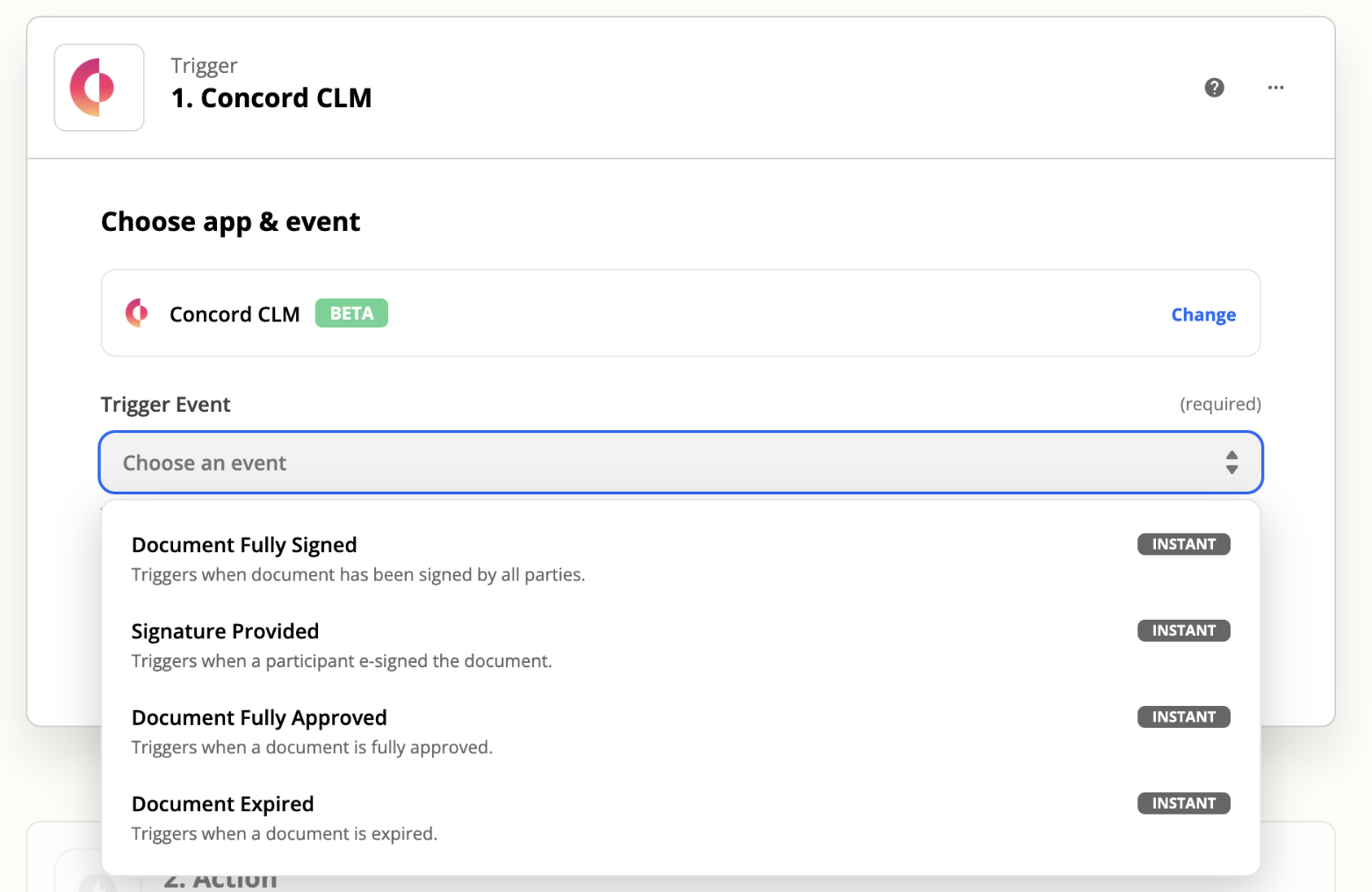
Select a trigger from the drop-down
-
You will be asked to log in to your Concord account and allow Zapier to connect to your Concord account.
-
Once logged in, choose the platform you would like to connect to Concord
-
Choose an event or reaction to your initial Concord action
The example below states that when a document is signed in Concord, message a channel in your slack account
-
Keep in mind that whatever platforms you include in your Zaps will have to be connected to Zapier.
-
Test the action
-
Turn on the Zap!
Zaps are structured as if-then statements. In the example video below the Zap is:
-
If "there is a signed document in Concord"
-
Then, "there will be a message in Slack notifying the team that the document was signed.
Featured Zaps
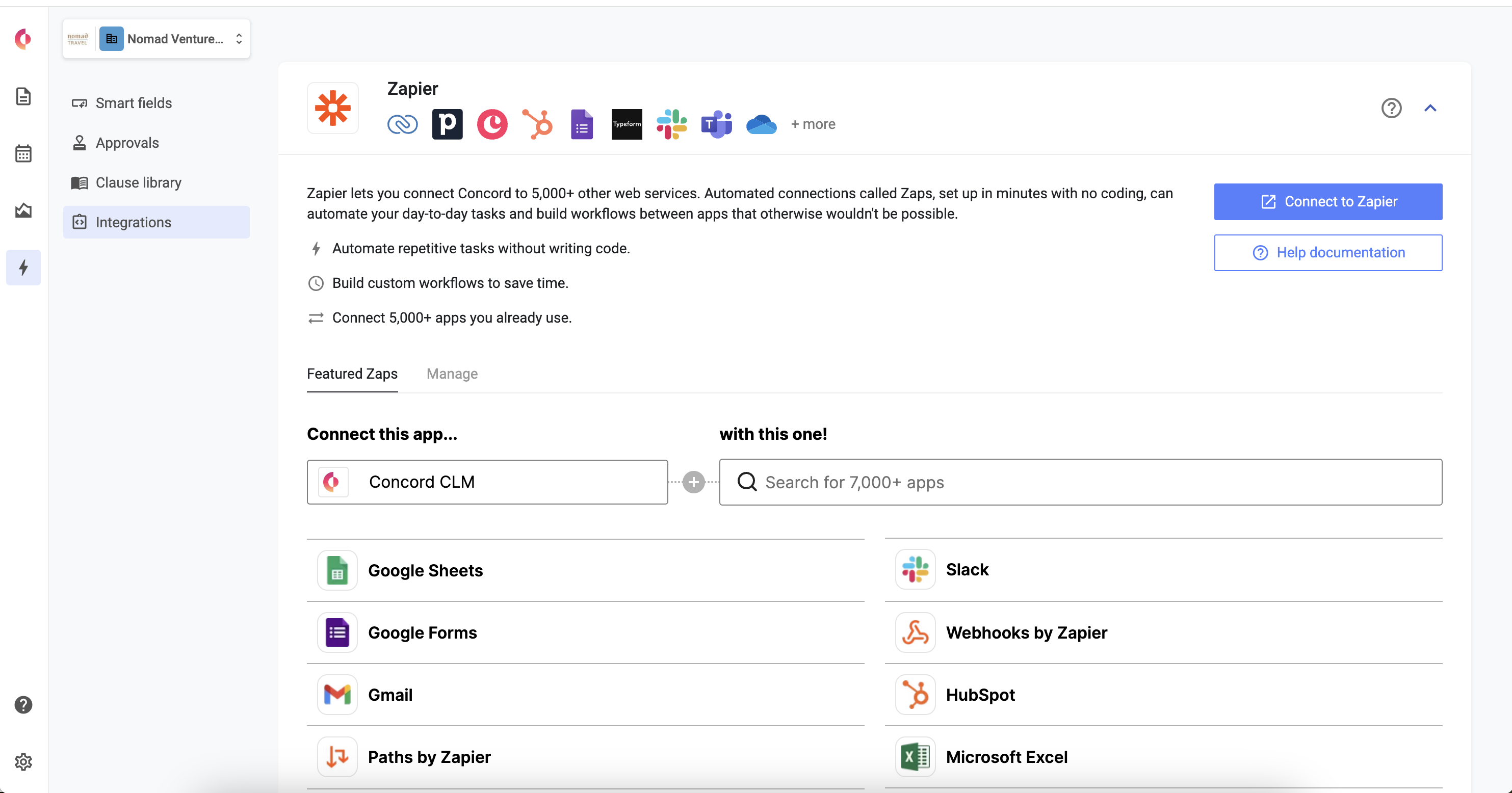
Once Concord and Zapier are connected, by selecting **Automations>****Integrations **from the left navigation menu, you can turn on featured zaps with the click of a button!
-
Click Automations>I****ntegrations.
-
Open the Zapier dropdown
-
If you have yet to connect your Concord account, select **Connect to Zapier **and follow the prompts
-
If you have connected your accounts, select any Zaps you would like to establish by clicking Use this Zap.